Settings reference
Open the panel with Center, Enter or Menu. Up / Down selects a row and Left / Right changes it. On touchscreen Android, tap the visuals to open the panel, tap rows and scroll vertically. Every setting is saved on the device.
Main panel
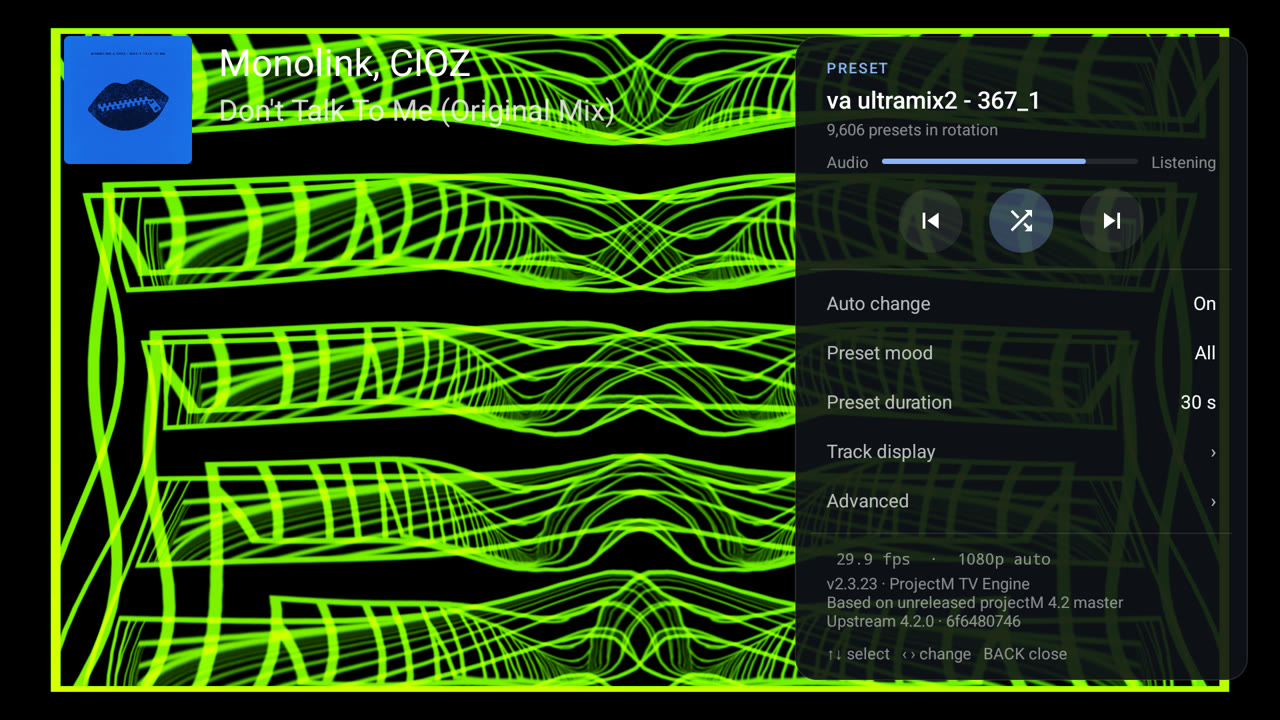
| Setting | Values | Default | What it does |
|---|---|---|---|
| Audio input (ProjectM Android only) | Microphone; Phone playback (Android 10+) | Microphone | Opens the audio source selector; playback needs Android consent |
| Auto change | Off, On | On | Change presets automatically after Preset duration |
| Preset mood | Opens the Mood panel: Energy (Chill, Normal, Intense), Brightness (Dark, Balanced, Bright), Colour (Monochrome, Pastel, Vivid, Warm, Cool), Palette (Red, Orange, Yellow, Green, Cyan, Blue, Purple, Pink), Main colour (the same eight colours), Movement (Still, Drifting, Fast), Style (Kaleidoscope, Tunnel, Liquid, Geometric, Particles, Fractal), Comfort (No strobe); Collection (Built-in, Custom); Clear all | Nothing selected | Which presets play. Choices combine: any option within a group, and all groups together. Nothing selected plays everything. Collection appears after a pack upload; Custom-pack presets do not play while an option is active. See Preset moods |
| Preset duration | 10, 15, 20, 30, 45, 60, 90 s | 30 s | How long each preset plays with Auto change on |
| Track display › | Opens the track panel | ||
| Advanced › | Opens performance and quality settings |
Phone audio input
ProjectM Android adds Audio input to the main panel. Microphone is the default; grant Record audio permission to visualize nearby sound. Phone playback uses Android 10+'s audio playback capture for music/games played on the same device: select it and approve Android's capture prompt. Protected audio and players that opt out cannot be captured. The input row shows the capture status, and the Audio meter shows whether the samples contain sound.
Capture stops when the app pauses, so nothing records the microphone or playback in the background. Phone playback needs new consent after you return; select it again to restart. Audio samples stay in memory and are converted to the same unsigned mono waveform format the TV engine uses. TV audio capture is unaffected, and the separate Advanced diagnostics card is TV-only.
Track display
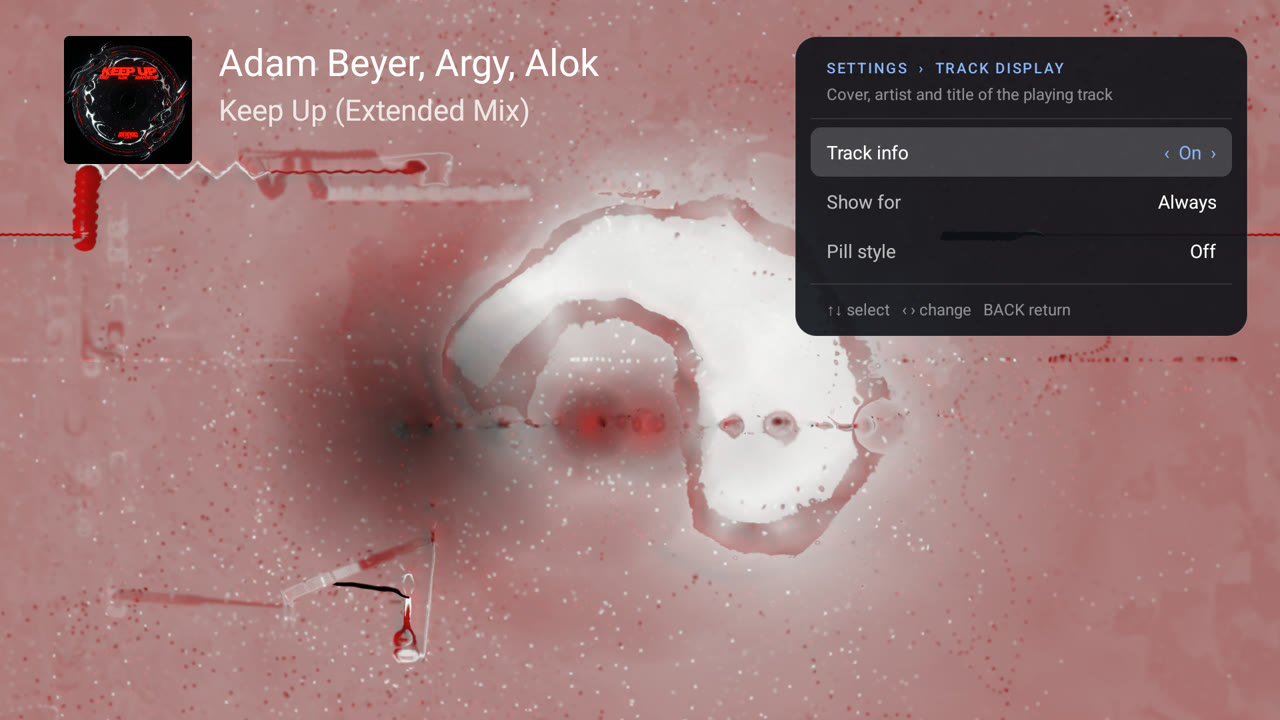
| Setting | Values | Default | What it does |
|---|---|---|---|
| Track info | Off, On; Off · Allow without access | On | Shows cover, artist and title in the upper left. Without notification access, selecting it opens the setup dialog |
| Show for | 10 s, 20 s, 30 s, 60 s, Always | Always | How long after a track starts. Always keeps it while music plays; it hides 2 s after playback stops or pauses |
| Pill style | Off, On | Off | Shows Title — Artist on one line in the small pill in the lower left instead |
Advanced
| Setting | Values | Default | What it does |
|---|---|---|---|
| Resolution | Auto; 720p, 1080p, 1440p, 4K (up to the panel); Native (panel) | Auto | How large the visualizer renders. See Picture quality |
| Frame rate | The refresh rate, ½ or ¼ of it, at least 24 fps | 30 fps at 60 Hz, 25 at 50 Hz | Target frame rate, paced to the display |
| Detail | Minimal 24×16, Low 32×24, Medium 48×32, High 64×48, Ultra 96×72 | High on SHIELD/Tegra, Low on low-RAM devices, otherwise Medium | Warp mesh size. Per-vertex equations run on the CPU for every mesh point |
| Native trails | Standard, Medium, High | Standard | How feedback is drawn above 1330p. See Picture quality |
| Transition | Instant, 1-10 s | 7 s (2 s on low-RAM devices) | Blend length for automatic changes. Instant cuts without blending and halves the memory reserved for two presets |
| Transitions | Auto, Lightweight, Classic | Auto | How automatic changes blend. See Picture quality |
| Cut on loud beats | Off, On | Off | Lets projectM cut to the next preset on a loud beat, as MilkDrop does |
| Skip slow presets | Off, On | On | In Auto resolution, permanently skips presets that stay below half the target frame rate even at the lowest resolution, or that a lower resolution does not help |
| Skip blank presets | Off, On | On | Moves on from presets that stay black while music plays; skips one permanently the second time |
| Auto-update | Off, On; Via F-Droid | On in GitHub editions | Checks GitHub for stable app releases; preserves a previously saved Off. F-Droid editions update through F-Droid. See Updates |
| Cream of the Crop (F-Droid only) | Download, Cancel, Remove collection | 20 starters | Optional full preset collection, stored offline after installation. See Collection setup |
| Custom preset pack | Upload ZIP › | No pack | Upload your own presets from a phone or computer. See Custom preset packs |
| Skipped presets | None, or N · Reset | Shows how many presets this device skips; select it to clear the list | |
| Last exit | None recorded, or the reason and how long ago | Saved native crash reports and Android's latest on-screen exit reason (Android 11+). Select it for the exit report |
All three panels scroll when their rows do not fit. On phones, swipe vertically; on TV, D-pad focus brings each row into view.
Diagnostics
On TV, opening Advanced also shows a Diagnostics card beside it with live values:
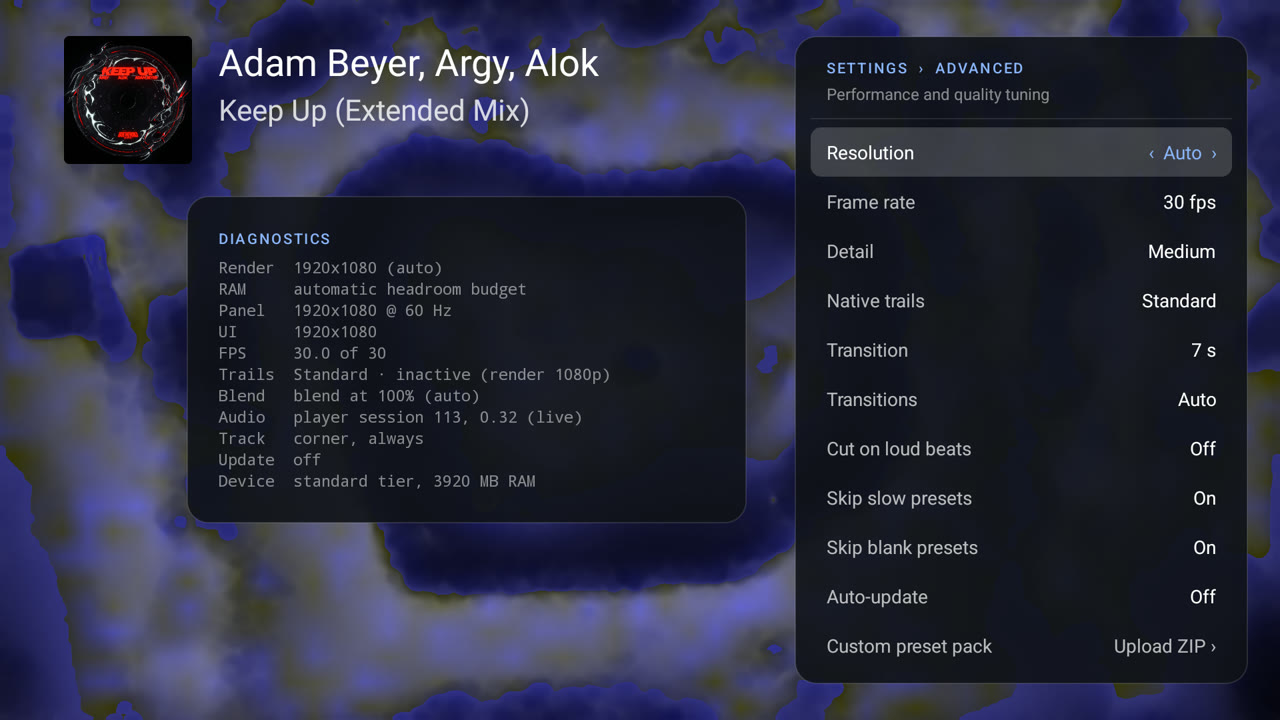
| Line | Example | Meaning |
|---|---|---|
| Render | 3840x2160 (auto) |
Current render size and mode: auto, native or fixed |
| RAM | automatic headroom budget |
resolution reduced for memory headroom when memory protection is lowering the size |
| Panel | 3840x2160 @ 60 Hz |
The physical display mode |
| UI | 1920x1080 |
Android's interface size, often 1080p on a 4K TV |
| FPS | 30.0 of 30 |
Measured and target frame rate |
| Trails | Standard · 1280×720 canvas |
Native trails level and its state: the active canvas, inactive (render 1080p), canvas fallback or shader/resource fallback |
| Blend | blend at 75% (auto) |
The transition mode and its current blend scale |
| Audio | player session 1234, 0.42 (live) |
Where audio comes from: no capture (permission?), no player session found yet, silent / no data or the live level |
| Track | corner, always |
Track display state, or no access with the Android path to enable it |
| Update | up to date, checked 14:02 |
Auto-update state |
| Device | standard tier, 3800 MB RAM |
Device tier and RAM |
| GPU | Mali-G52 |
The graphics chip as its driver names it |
Exit report
Selecting Advanced › Last exit opens Recent exits. It shows whether native crash capture started and up to five saved native reports, followed by the device, Android version, GPU and Android's recent exit history. Saved native reports include the signal, fault address, crashing thread, available native backtrace and module build IDs. Copy report copies the displayed text for a bug report; a photograph is useful too. Reading the saved files happens in the background.
Clear saved crashes deletes the local native files; Android's exit history remains. Android's exit history is available from Android 11 onward. Each exit shows:
- how long ago and why it ended, as Android recorded it: for example crashed (native code), killed for low memory, killed by signal 11 (SIGSEGV), stopped by the system or stopped: app updated (before Android 14, Android reports updates as stopped by request);
- whether the app was on screen or only running in the background (for example for track titles);
- Android's description and its last available process memory sample;
- for the last process that showed visuals, what the engine was doing: the render line (loading, blending into, showing a preset, with its size) and the prewarm line (compiling a preset in the background, or idle), each with the seconds before the exit. Older trail files may also show the retired troubleshooting switches' states.
Saved reports and the two engine trail lines stay in private app storage excluded from Android backup. Nothing is uploaded automatically. Native reports also contain raw register/stack memory in their stored files; the screen and copied text show the diagnostic fields rather than those memory sections. The app retains five native reports. A system kill, power loss or a crash that prevents the reporter from running may leave no native report, and unwinding can be incomplete. An unavailable stack is labelled explicitly. Android 10 and older can show saved native reports and the engine trail, but have no Android exit history.
Notices
Small notices can appear in the lower-left pill. No audio detected is the TV player-session notice; on phones, audio status appears in Audio input and the Audio meter instead. On either build, an update-ready notice adds an Install row to the main panel.
Examples on TV:
- No audio detected: no player session was found after a start. See Troubleshooting.
- ProjectM TV version is ready to install: open the settings: an auto-update has been downloaded. The Install row appears at the top of the main panel.