Install and get started
Requirements
- Android TV or Google TV for ProjectM TV; a touchscreen phone or tablet for ProjectM Android. Both need Android 5.0 or later and OpenGL ES 3.0.
- At least 2 GB of RAM is highly recommended; more RAM leaves more headroom for high render sizes.
- For TV or phone playback input, music must play on the same device and continue when the visualizer opens. The TV version has been verified with Spotify, SoundCloud, SmartTube and Milkbeat; that list does not certify phone capture. Microphone input does not need a music app.
- Phone playback capture needs Android 10 or later and a player that permits capture. Microphone input is also available on older supported Android versions.
Neither build plays music itself. ProjectM TV visualizes another app's music without using the microphone; ProjectM Android can use the microphone or capture phone playback.
Install on the TV
- Install Downloader by AFTVnews from the TV's app store.
- Open Downloader and enter 4821216.
- Allow Android to install apps from Downloader when asked.
- Confirm installation of the downloaded APK.
The code points to the latest signed APK. Every version is available under Releases.
Install on a phone or tablet
- Install Downloader by AFTVnews from Google Play.
- Open Downloader and enter 6565691.
- Allow Android to install apps from Downloader when asked.
- Confirm installation of ProjectM Android.
The code points to the latest signed touchscreen APK. You can also download that APK in a browser and allow installation from the browser when Android asks. ProjectM Android appears in the regular app launcher and renders in landscape. The TV and touchscreen apps have separate settings and can coexist.
| Device | App | Downloader code | Stable APK filename |
|---|---|---|---|
| Android TV / Google TV | ProjectM TV | 4821216 | projectM-TV.apk |
| Touchscreen phone / tablet | ProjectM Android | 6565691 | projectM-Android.apk |
Choose an edition
Downloader installs the full GitHub edition for your device. The smaller F-Droid editions use the same app IDs and signing key, with a different preset bundle and update path:
| Edition | Stable APK | Included presets | App updates |
|---|---|---|---|
| GitHub TV | projectM-TV.apk |
9,606 with textures | GitHub updater, enabled by default |
| GitHub phone/tablet | projectM-Android.apk |
9,606 with textures | GitHub updater, enabled by default |
| F-Droid TV | projectM-TV-FDroid.apk |
20 starters | F-Droid |
| F-Droid phone/tablet | projectM-Android-FDroid.apk |
20 starters | F-Droid |
The F-Droid APKs are also published as separate GitHub release assets. Whether they appear in F-Droid itself depends on its maintainers accepting each listing. These editions have no built-in app installer or updater, even when sideloaded.
Install from a computer
TV:
curl -LO https://github.com/johnneerdael/ProjectM-Android/releases/latest/download/projectM-TV.apk
adb install -r projectM-TV.apk
Phone or tablet:
curl -LO https://github.com/johnneerdael/ProjectM-Android/releases/latest/download/projectM-Android.apk
adb install -r projectM-Android.apk
All production releases use the same permanent signing key. An APK you build yourself with a debug key cannot update a production installation.
First launch: allow the music visualizer
Optional collection in F-Droid editions
The F-Droid edition starts with 20 curated presets that work offline. On first launch, choose Download (recommended) for the complete Cream of the Crop collection, or Use 20 starters to continue straight away. You can make the same choice later under Settings › Advanced › Cream of the Crop.
The verified download comes from GitHub and contains 9,606 presets, their textures and the existing mood metadata. It is 39.1 MiB to download and 131.0 MiB unpacked; keep at least 186.1 MiB free for the archive, extraction and installation overhead. Keep the visualizer in the foreground while it downloads and prepares the collection. If you leave during that work, it is cancelled and the current presets stay, although an installation that is already completing may finish. You can retry from the same setting.
Once installed, the collection works offline and survives restarts. Remove collection returns to the 20 starters and leaves your custom pack available. Clearing app data or uninstalling removes downloaded packs. App updates do not replace an installed collection; new collection contents need another explicit download.
Android TV / Google TV
Start a track in your music app on the TV, then open ProjectM TV. Music playing on a phone or on a separate receiver is not available to the app.
Android asks Allow ProjectM TV to record audio? Choose While using the app (on older Android versions, Allow). Android requires this permission for its audio visualizer API. ProjectM TV attaches to the music player's own audio session, and it does not use the microphone or save anything. The engine page explains how the player's session is found.
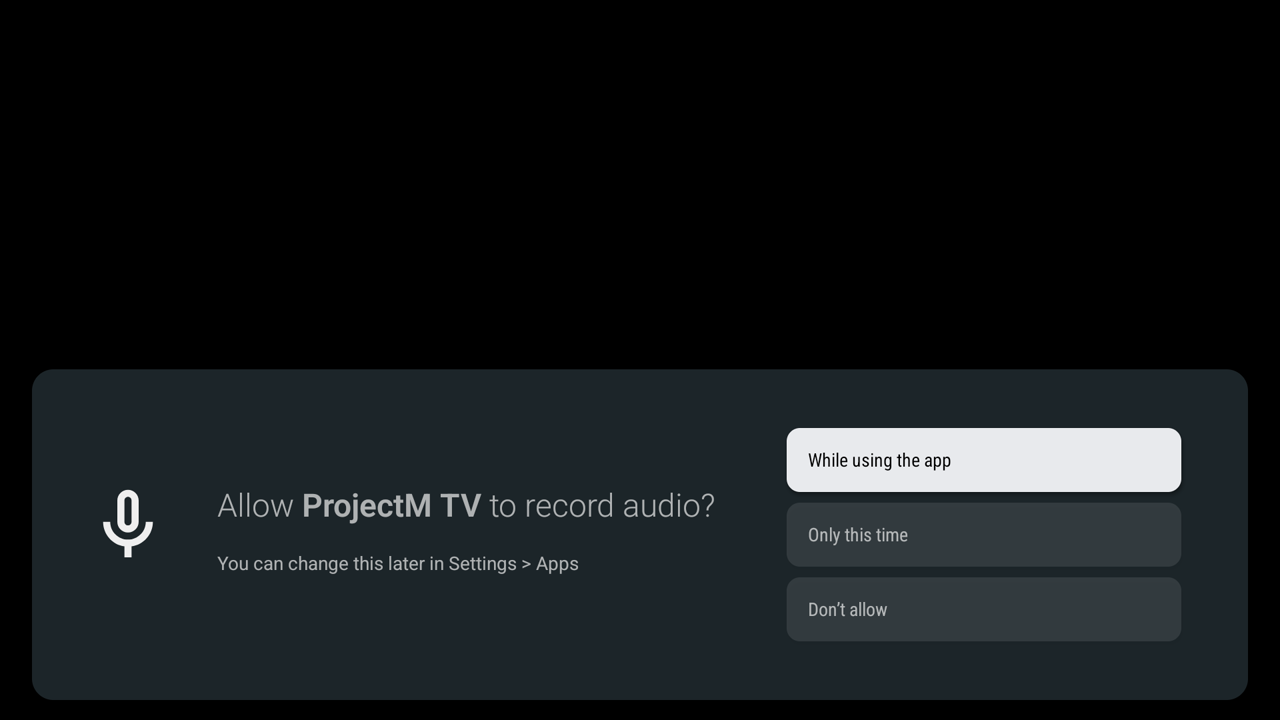
The screenshots on this page show the released app on an Android TV 16 emulator. Android menus and wording vary by device and version.
Finding the player takes a second or two. Presets can move before any music is detected, so check the Audio meter in the settings panel: Listening means music is arriving. If no player is found after a start, a No audio detected notice appears in the lower left.
If you selected Deny, allow the permission under Android Settings › Apps › ProjectM TV › Permissions, then reopen the app. If the meter stays silent while music plays, see audio troubleshooting.
Touchscreen phone or tablet
Open ProjectM Android and grant Record audio access. The default Microphone input reacts to sound around the device. Tap the visuals to open the menu; Audio input chooses the source:
| Input | How to start | What it hears |
|---|---|---|
| Microphone (default) | Grant Record audio permission | The device's microphone; music or other nearby sound |
| Phone playback | On Android 10+, select this input and approve Android's capture prompt | Capturable music/game audio from apps playing on the same phone or tablet |
For Phone playback, start music in another app, return to ProjectM Android, then tap Audio input and select Phone playback. Android's prompt mentions screen capture, but the visualizer captures only audio and makes no video recording. Players can block capture, including protected playback, so a silent meter can mean the player does not permit it.
Both inputs stop when the visualizer leaves the foreground. Microphone input resumes when you return. Phone playback needs fresh consent, so select it again. If you denied Record audio permission, allow it under Settings › Apps › ProjectM Android › Permissions, then reopen the app. To check the result, use the Audio meter and phone audio troubleshooting.
For gestures, see touchscreen controls. The screenshots below show TV setup; Android settings and wording vary by device.
Track titles (optional)
After the audio permission, a Show track titles dialog offers two choices:
- Configure opens Android's notification-access settings. On Android 11+ it tries the installed app's own page first, then falls back to the list of apps, Apps, or the main Settings screen.
- Dismiss permanently hides the automatic prompt for this installation. You can still open it from Settings › Track display › Track info.
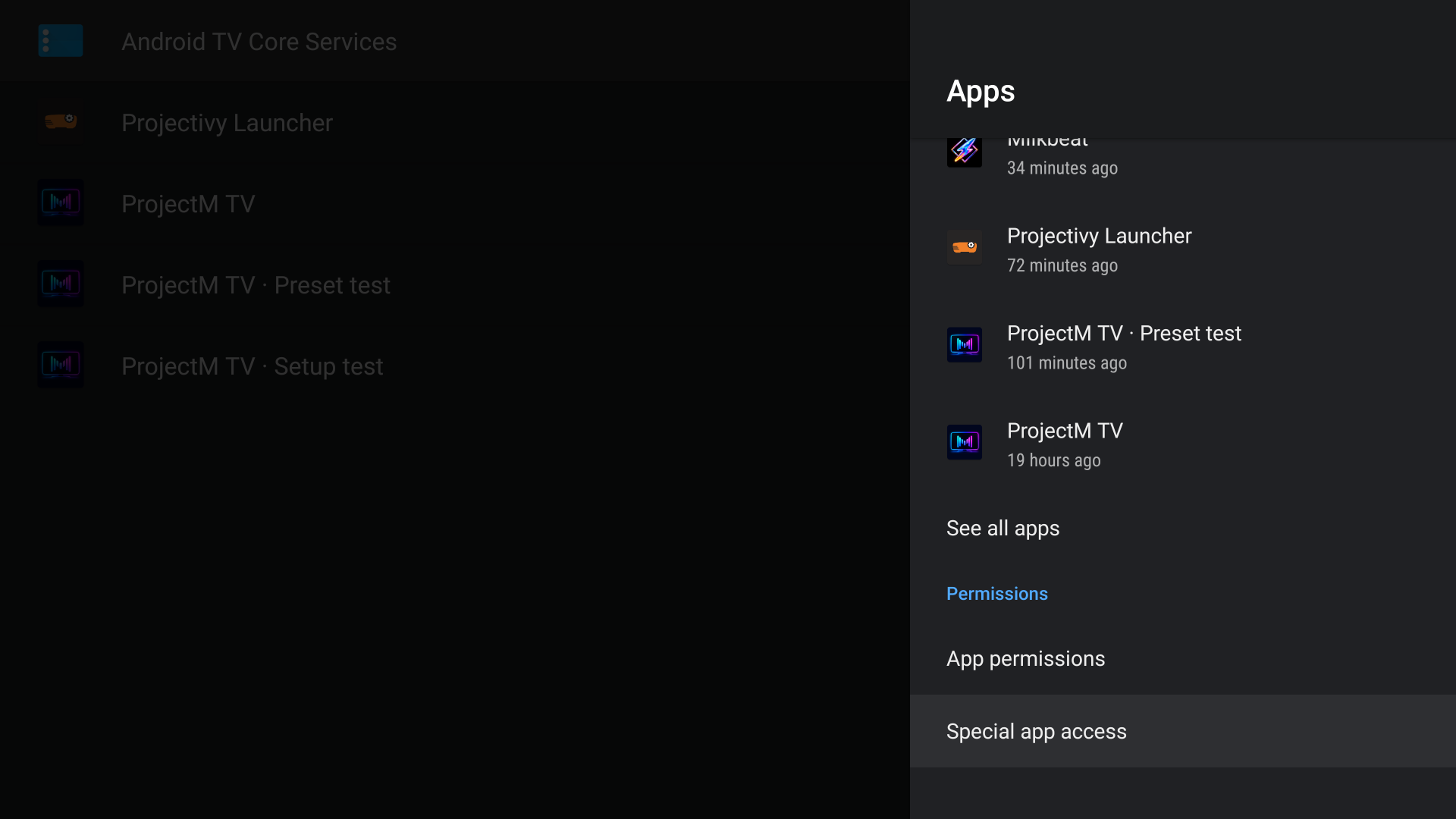
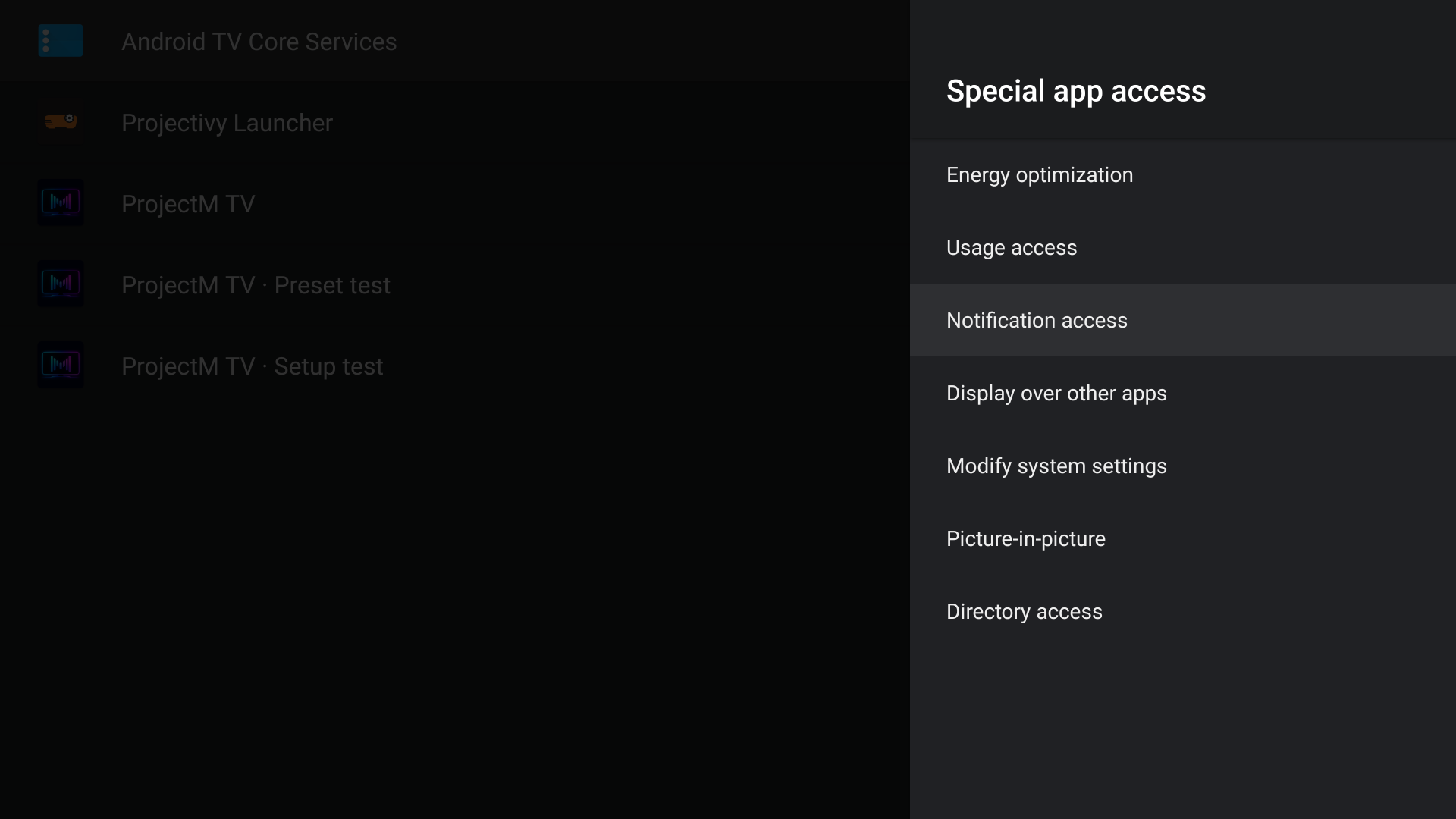
The dialog names the path for your edition: Settings › Apps › Special app access › Notification access in ProjectM Android on a phone, and Settings › Device Preferences › Apps › Special app access › Notification access in ProjectM TV.
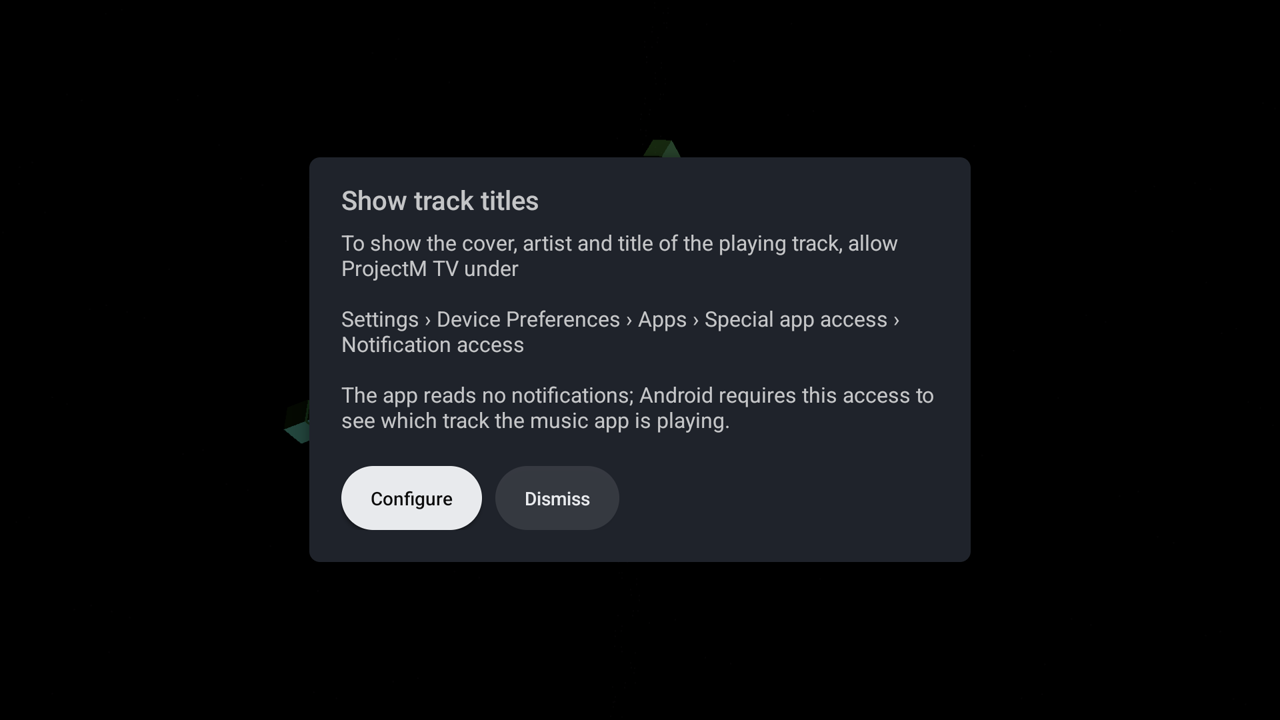
Enable access with Configure
- Select Configure.
- Find ProjectM TV or ProjectM Android, matching the app you installed, in the notification-access list, unless Android already opened its page.
- Turn its switch on. Some Android versions ask you to confirm.
- Press Back to return to the visualizer.
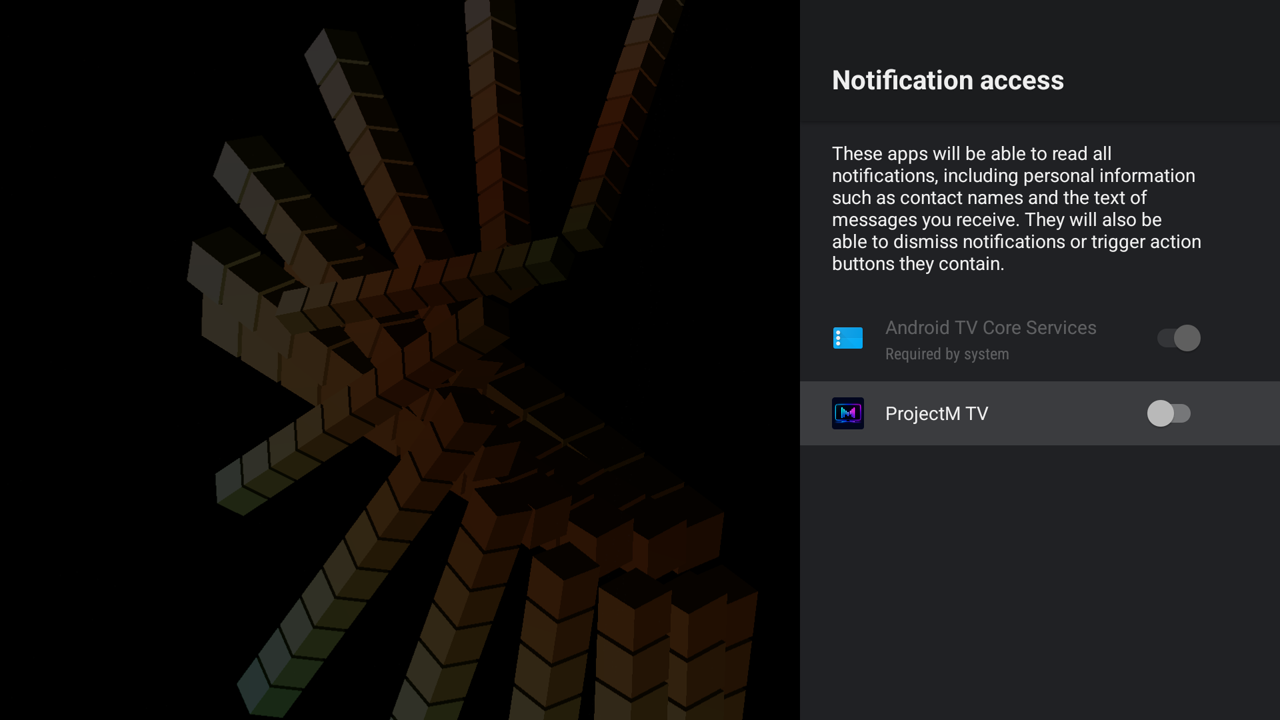
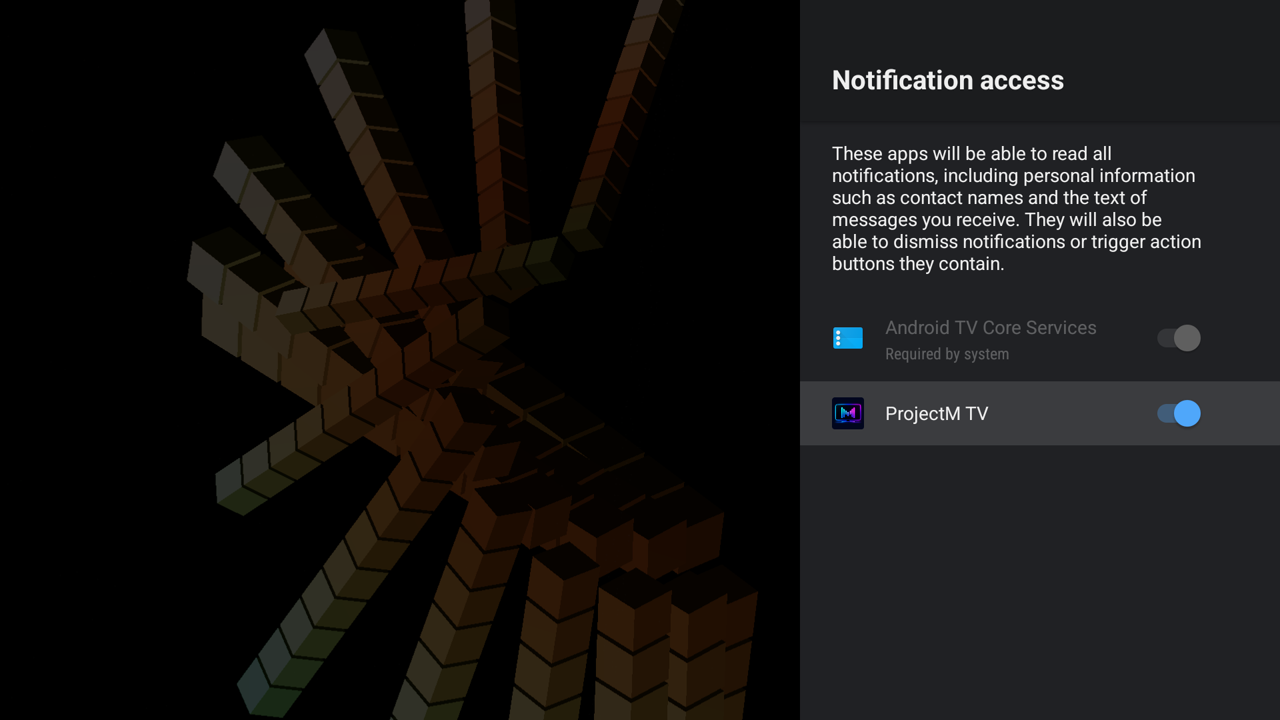
Both apps use notification access only to read the player's media session for cover, title and artist. They do not read notification contents, and the visuals work without this access. Microphone input alone cannot identify the music playing in the room.
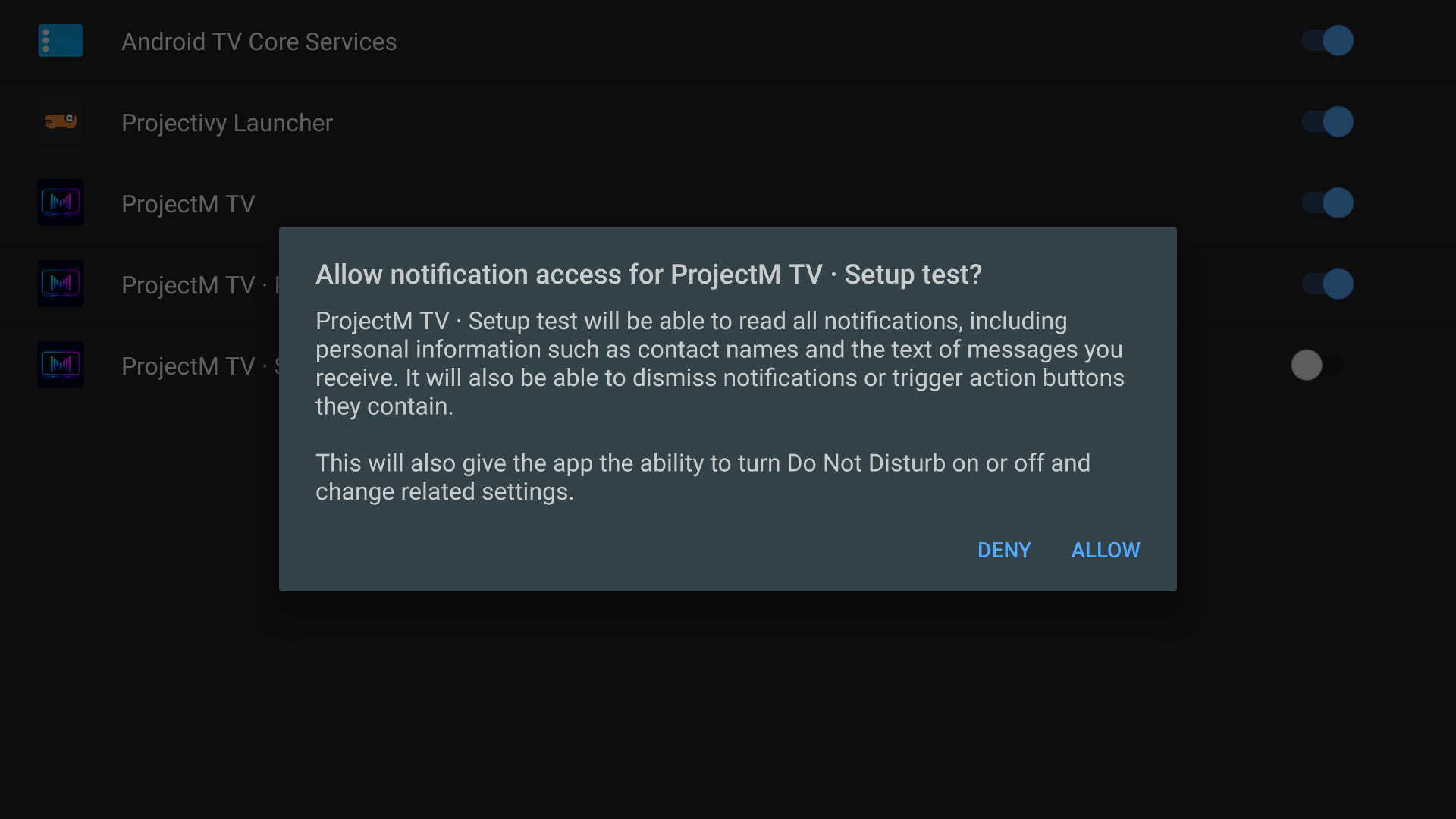
Choosing Configure does not dismiss the reminder, so if you return without enabling access, the dialog can appear again on a later launch.
Find the setting manually
Look for Apps › Special app access › Notification access (these two screenshots are from Android 9). Phones list Apps at the top level of Settings. Some Android TV devices put Apps under Device Preferences first (on the NVIDIA SHIELD: Settings › Device Preferences › Apps › Special app access › Notification access).
Reopen setup after Dismiss
On TV, open the panel with Center / Enter / Menu; on phones, tap the visuals. Then select Track display, then Track info. Without access the row reads Off · Allow and reopens the same dialog.
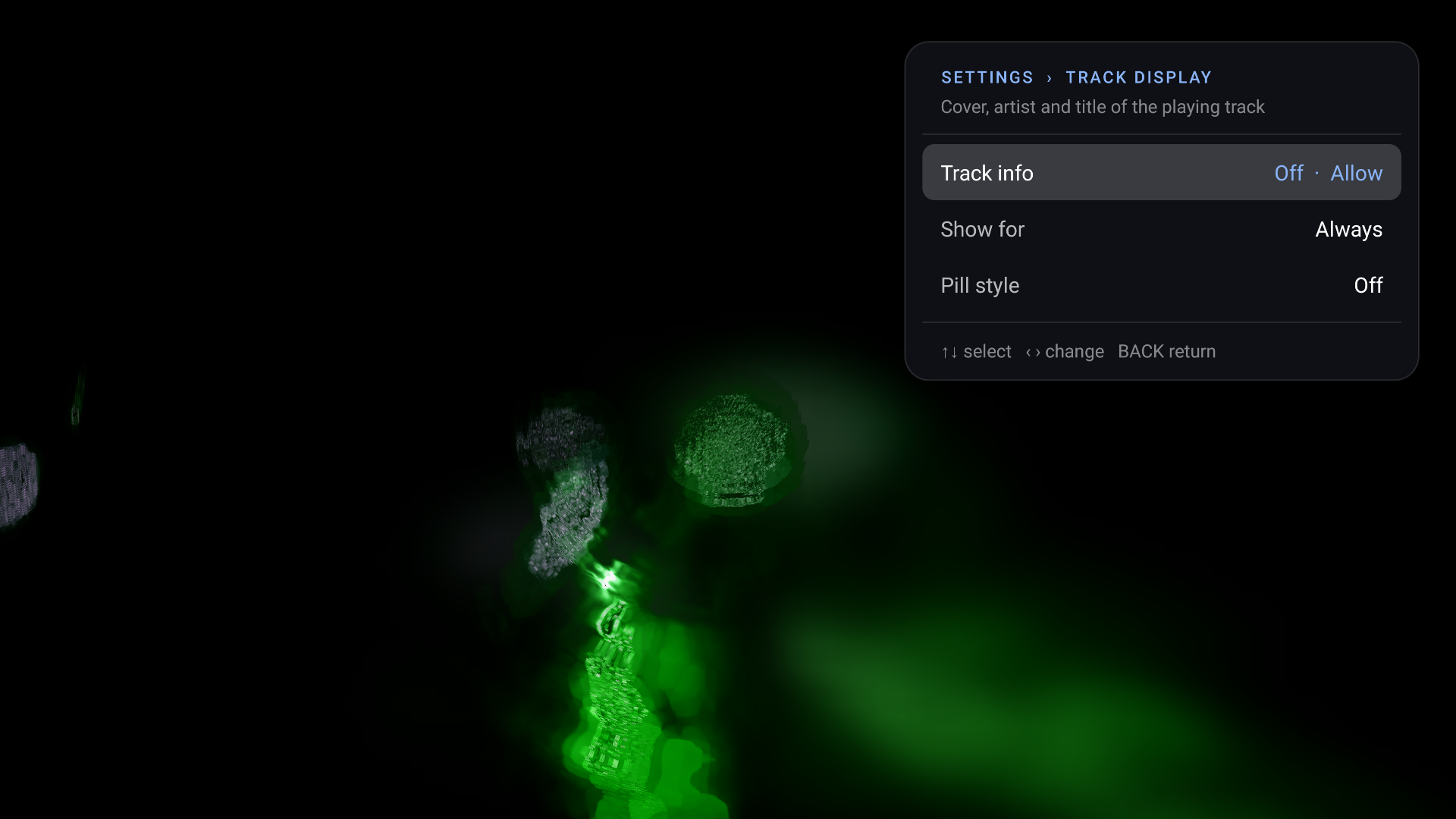
With access, the cover, artist and title appear in the upper left for as long as the track plays. In Track display you can limit this to 10 to 60 s per track or switch to a one-line pill in the lower left. Up / Down / Info shows the track again.
TV covers have been verified with Spotify and Milkbeat. SoundCloud and SmartTube provide artist and title only.
Pick a preset mood
Open the panel and choose Preset mood (Settings › Preset mood). The Mood panel has one row per attribute group: Energy, Brightness, Colour, Palette, Main colour, Movement, Style and Comfort. Move Left or Right to an option and press Center to switch it on or off. Each option shows how many presets you would have (→ N), and options that would leave none are dimmed. With nothing selected, everything plays; Clear all takes you back to that state.
| You select | What plays |
|---|---|
| Nothing (default) | The available library: 9,606 in GitHub editions or after the full download; 20 starters otherwise, plus your custom pack |
| Energy › Chill | Calmer presets |
| Chill and Dark (different groups) | Presets that are both |
| Vivid and Warm (same group) | Presets that are either |
| Palette › Blue | Presets with blue among their colours |
| Collection › Custom | Only your uploaded pack; the row appears after an upload |
Attributes are predicted from each preset's source and are not guaranteed, and some presets carry no option yet. Comfort › No strobe and Chill are only starting points: they do not promise that nothing flashes. A Chill, Normal or Intense choice from an earlier version becomes the matching Energy option. See Preset moods for details.
Good starting settings
Both builds start with Auto resolution and the shared settings below. On phones, Audio input starts on Microphone; switch it to Phone playback to visualize music playing on the device.
| Setting | Default | When to change it |
|---|---|---|
| Auto change | On | Off keeps the current preset |
| Preset duration | 30 s | Longer for slower viewing |
| Advanced › Resolution | Auto, up to the panel's native size | Native or a fixed size to test a preset at full resolution |
| Advanced › Frame rate | About 30 fps (30 at 60 Hz, 25 at 50 Hz) | Higher needs more GPU and may lower Auto resolution |
| Advanced › Native trails | Standard | Medium or High for more native detail on 4K panels |
| Advanced › Transitions | Auto | Lightweight on very slow devices |
| Advanced › Skip slow / blank presets | On | Leave on |
If playback stutters, see Picture quality and performance.
Updates
In GitHub editions, Settings › Advanced › Auto-update is on by default, but an explicitly saved Off stays off after upgrading. While the setting is on, the app checks GitHub about 10 s after launch and every six hours while open. When it finds a newer stable release, it downloads it, verifies the app ID, higher version and signing key, then shows an Install row. Android asks you to confirm installation and may ask you to allow installs from the visualizer. TV downloads projectM-TV-<version>.apk; phones download projectM-Android-<version>.apk. Turning the setting off deletes a downloaded update.
Versions 2.3.46 and older cannot update themselves since the repository moved from ProjectM-TV to ProjectM-Android. In those versions, the Update line in the Diagnostics card under Settings › Advanced shows check failed (HTTP 301 …). Install the current version once with Downloader (or the phone code); later versions update automatically again.
F-Droid editions show Via F-Droid and receive app updates through F-Droid. The optional collection download is separate from app updates.
Privacy
Audio is analysed locally and is not uploaded. For the exit report, the app keeps two short engine trail lines and up to five native crash reports in private storage excluded from Android backup. Crash files include stack/register memory fragments, which can contain app data; the viewer and copied report omit those raw memory sections. Reports are never uploaded automatically. The app uses the network only for GitHub app updates when they are enabled, F-Droid collection downloads when you request one, and the temporary custom-pack upload listener on your local network.